Google Search Console helps you answer two questions: can Google access your website, and what happens when your pages appear in Search? This tutorial walks through the setup and the reports that help you find indexing problems, measure organic impressions, and decide what to improve next.
What is Google Search Console?
Google Search Console is a free service that reports how Google crawls, indexes, and displays your website in Google Search. It is not an analytics product. Search Console shows search queries, impressions, clicks, indexing status, and technical reports, while Google Analytics focuses on what visitors do after they reach your site.
You can use Search Console to:
- Check whether Google can crawl and index important URLs.
- See which queries and pages receive impressions and clicks.
- Submit a sitemap and monitor whether Google can read it.
- Inspect one URL and compare its indexed state with the live page.
- Find indexing, security, manual action, and crawl problems.
Search Console does not guarantee that a page will rank or appear for every query. It gives you evidence about how Google sees the site, so you can fix problems and make better content decisions.
Add the correct Search Console property
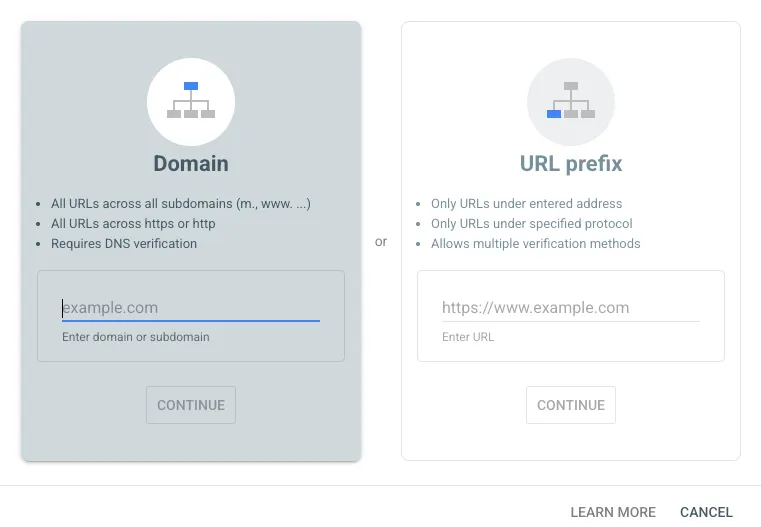
Search Console offers two main property types: Domain and URL-prefix.
Domain property covers the whole domain
A Domain property includes the domain's subdomains and protocols. For example, the Domain property example.com can include:
https://example.comhttp://example.comhttps://www.example.comhttps://blog.example.com
You add only the root domain, without https:// or a path. Domain properties require DNS verification, usually with a TXT record. This is the best default when you own the whole domain and want one view of its search data.
URL-prefix property covers one URL prefix
A URL-prefix property tracks URLs that begin with the exact prefix you enter, including the protocol. For example, https://example.com/blog/ does not include http://example.com/blog/ or https://blog.example.com/.
URL-prefix properties can be useful when you manage only one section of a site or want a separate report for a subdirectory. You can add both property types, but most site owners should start with a Domain property and add a URL-prefix property only when they need a narrower view.
Google's property documentation explains the scope and verification difference between these two options. Read the official property setup guide.
Verify ownership with DNS
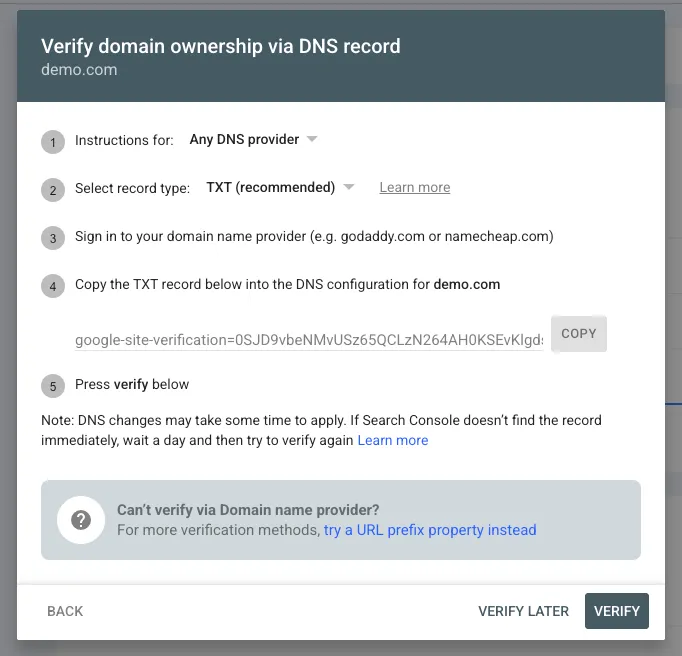
DNS verification proves that you control the domain. The exact interface depends on your DNS provider, but the process is the same:
- Open Search Console and select Add property.
- Choose Domain and enter the root domain, such as
example.com. - Copy the TXT record provided by Google.
- Open your DNS provider's DNS editor.
- Create a TXT record at the host Google specifies.
- Save the record and return to Search Console.
- Click Verify.
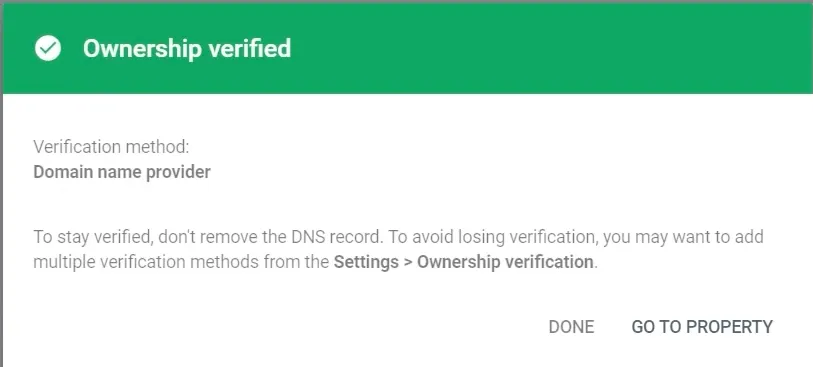
Verification can be immediate, but DNS changes may take longer to appear. Do not delete the TXT record after verification. Google may use it to confirm ownership later.
If verification fails, check that the TXT value is copied exactly, that you added the record to the correct DNS provider, and that the domain name was not duplicated in the host field. Some DNS dashboards expect @, while others expect the root domain or an empty host field.
Submit a sitemap once
A sitemap is an XML file that lists the canonical URLs you want Google to discover. It is useful for new sites and sites with many pages, but it is not a replacement for internal links or crawlable pages.
Open Indexing → Sitemaps, enter the sitemap path, and click Submit. If the property is https://example.com/, enter:
sitemap.xml
Search Console will request:
https://example.com/sitemap.xml
An Astro site using @astrojs/sitemap may publish a sitemap index that points to one or more child files, such as sitemap-0.xml. That is normal. Submit the index, not each child file separately.
A successful sitemap submission confirms that Google can read the file. It does not guarantee that every listed URL will be indexed. The URLs should be absolute, use the preferred protocol and hostname, return a successful response, and point to pages that are allowed to be indexed.
You generally submit a sitemap once. Submit it again only after a major sitemap configuration change or when Search Console reports a processing problem.
Read the Pages report before changing content
The Indexing → Pages report groups URLs by their indexing status. It is the place to start when you want to know why a page is missing from Google.
Indexed pages
These URLs are eligible to appear in Google Search. Being indexed does not guarantee impressions or clicks, but it removes the basic discovery and indexing barrier.
Page with redirect
Google found a URL that redirects to another URL. This is expected for old paths, HTTP-to-HTTPS redirects, or a non-canonical www hostname. Do not add redirecting URLs to your sitemap. List the final canonical URLs instead.
Alternate page with proper canonical tag
Google found a duplicate or alternate URL and selected another canonical URL. This is often correct. Investigate the affected URL and compare its canonical tag, redirect behavior, internal links, and sitemap entry before trying to force it into the index.
Crawled, currently not indexed
Google fetched the page but decided not to index it yet. This is not automatically a technical error. Check whether the page has useful, distinct content, a self-referencing canonical, a good title and description, and meaningful internal links. Request indexing only after you have improved an important page or confirmed that it should be indexed.
Excluded pages
Excluded URLs are not currently in Google's index. Some exclusions are intentional, such as noindex pages, duplicate URLs, redirects, and thin content. The goal is not to make every discovered URL indexed. The goal is to make every valuable canonical URL crawlable, indexable, and useful.
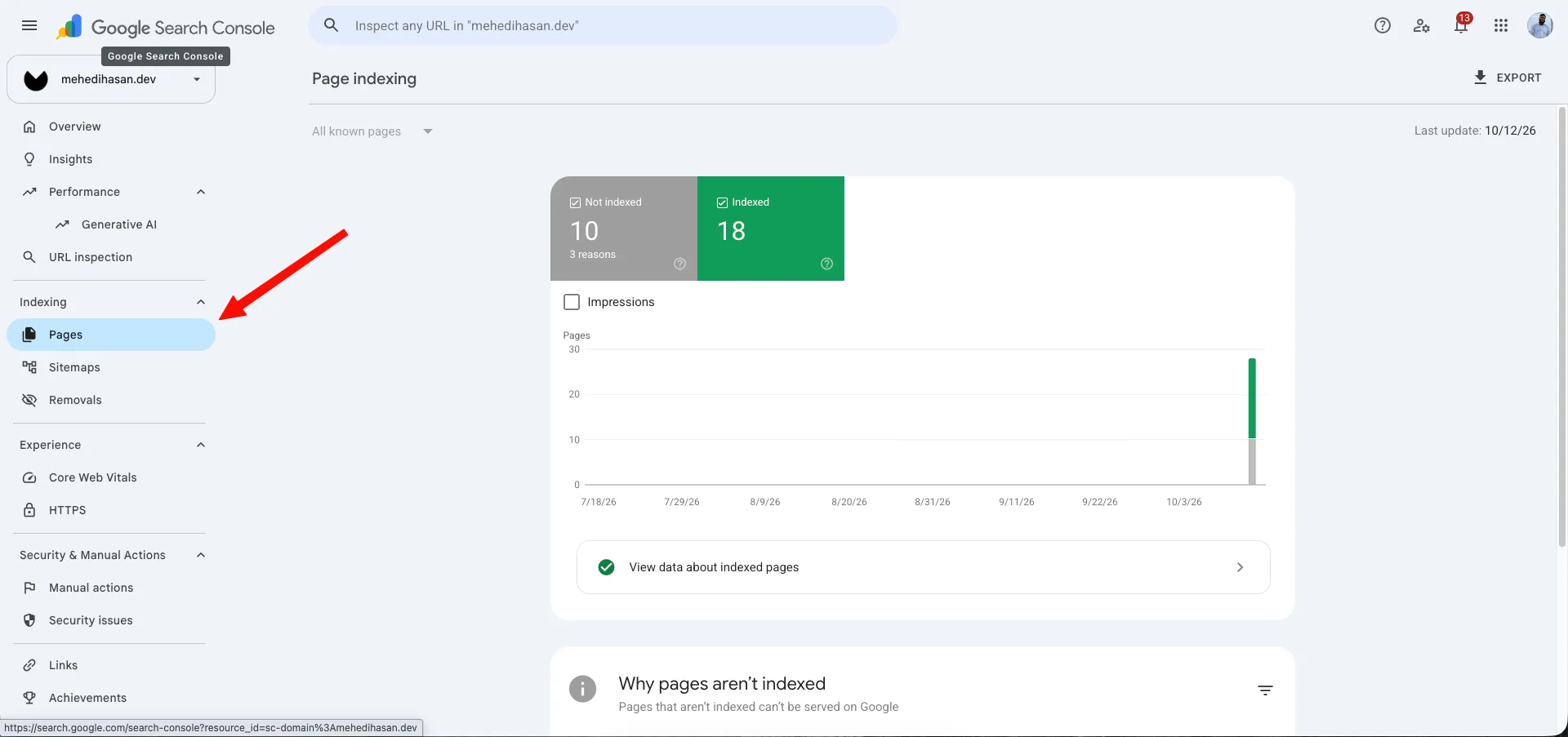
Search Console can take time to reflect a fix. Compare the report's last crawl date with the date you changed the page before deciding that a fix failed.
Use URL Inspection for one page at a time
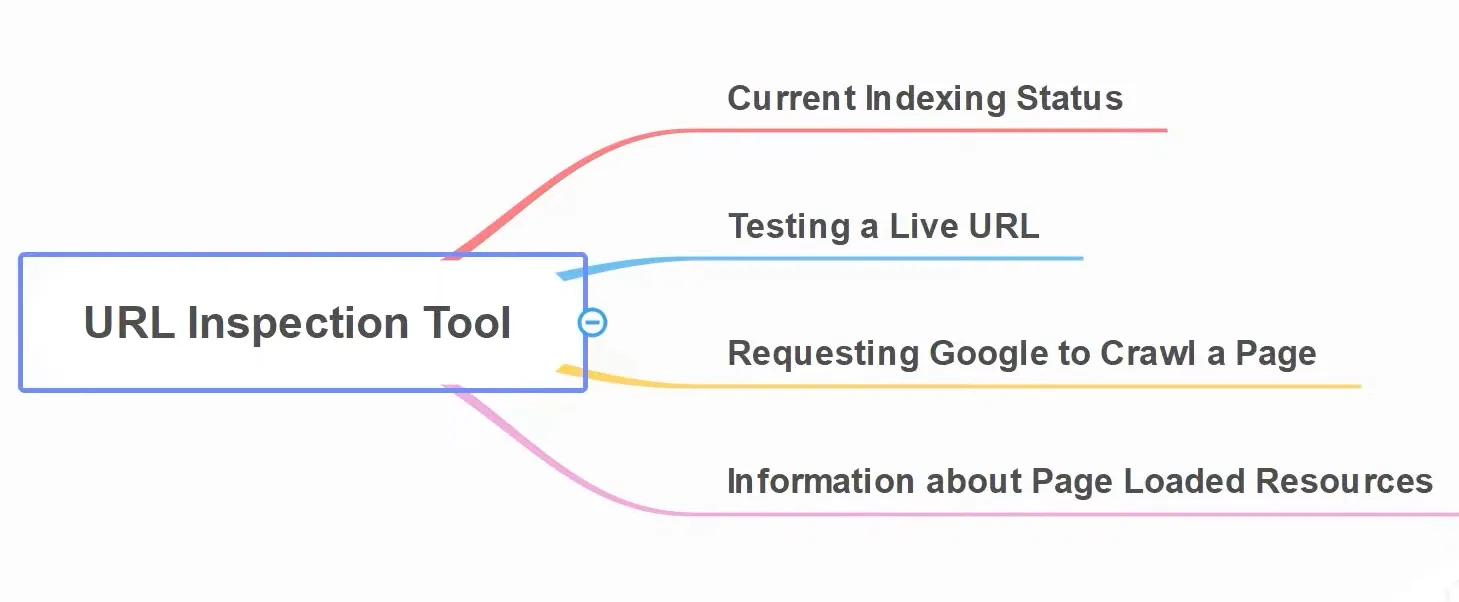
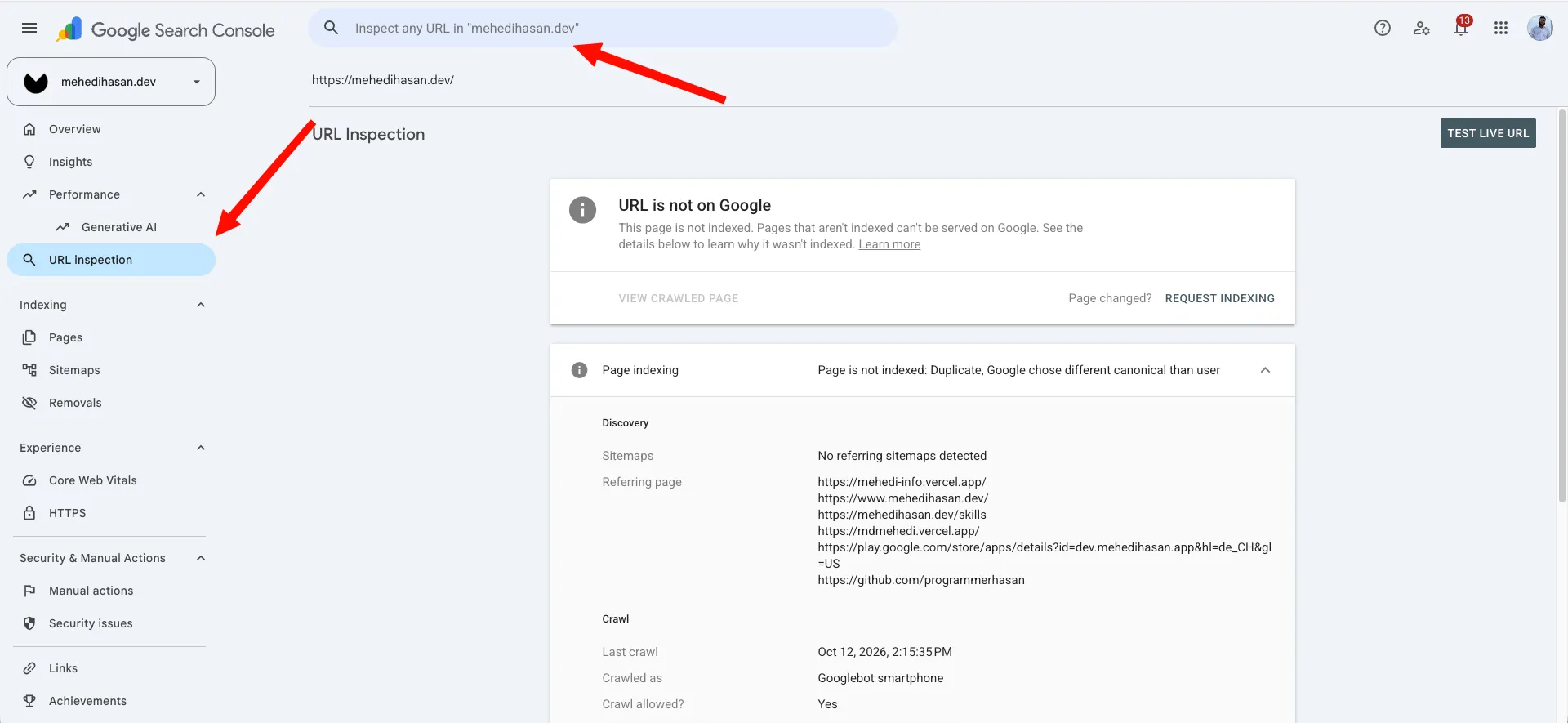
The URL Inspection tool shows what Google knows about a specific URL. Enter the full URL in the inspection bar at the top of Search Console.
The report usually covers four areas:
- Discovery: how Google found the URL, such as a sitemap or an internal link.
- Crawl: when Google last crawled the page, which crawler it used, and whether the fetch succeeded.
- Indexing: whether the page is indexed, its user-declared canonical, and Google's selected canonical.
- Enhancements: supported structured data and other search features detected on the page.
Test the live URL before requesting indexing
The indexed result can be stale. Click Test Live URL to check the current deployed page. A successful live test means Google can fetch the current page and the page is not blocked by a basic indexing directive.
If the page is important and has changed, click Request indexing after the live test. This adds the URL to a priority crawl queue, but it does not guarantee indexing or a particular ranking. There is also a daily request limit, so use the sitemap for many new or updated pages.
Inspect the canonical carefully. If your preferred URL is https://example.com/about, the page should return that URL in its canonical tag, use it in internal links, and appear in the sitemap with the same protocol and hostname.
Analyze organic impressions in the Performance report
The Performance → Search results report shows how your site performs in Google Search. Turn on the metrics above the chart and choose the table dimension that answers your question.
Metrics that matter
- Clicks: visits from a Google Search result to your site.
- Impressions: how often a result linking to your site appeared in Google Search.
- CTR: clicks divided by impressions.
- Average position: an aggregated position metric that can be difficult to interpret without query and page context.
To identify URLs receiving organic impressions:
- Open Performance → Search results.
- Select Search type: Web.
- Choose a useful date range, such as the last 3 months.
- Enable Impressions.
- Open the Pages tab.
- Sort by Impressions.
- Export the table if you want to compare pages in a spreadsheet.
The Pages tab shows which URLs appeared in Search. The Queries tab shows what people searched for. Click a query to filter the report, then open Pages to see which URLs appeared for that query.
Turn impressions into SEO decisions
Use the report to find patterns, not just a list of numbers:
- High impressions and low CTR can indicate that the title or description does not match the query well.
- Impressions with low average position can reveal topics where clearer content and stronger internal links may help.
- Queries that are related to a page but missing from its title and headings can suggest a useful content update.
- A sudden drop in impressions or clicks should be compared with the same period before you assume a site problem.
Use filters for page, country, device, search appearance, and date. Compare equal time periods, such as the last 28 days with the previous 28 days. Google recommends focusing on trends and query-level context instead of treating average position as a complete performance score. Read the Performance report guide.
Use Removals only for temporary hiding
The Removals tool temporarily hides URLs from Google Search. It does not delete a page from your website or permanently remove it from Google's index.
To submit a removal request:
- Open Indexing → Removals.
- Click New request.
- Choose whether to remove one URL or all URLs with a path prefix.
- Review the request and submit it.
Temporary removals normally last about six months. For a permanent change, remove the page and return 404 or 410, redirect it to a relevant replacement, or add a noindex directive when the page should remain accessible but not appear in Search. Do not use Removals as a substitute for fixing the page itself.
Check Manual Actions and Security Issues
Open Security & Manual Actions regularly, especially after a deployment or a security incident.
Manual Actions
A manual action means a Google reviewer found a violation of Google's spam policies. It can affect individual pages or the whole site. Search Console displays the issue and links to the relevant policy. Fix the cause first, then submit a reconsideration request from the report.
Security Issues
Security Issues reports can identify malware, phishing pages, deceptive content, or compromised resources. Treat these alerts as urgent. Review recent deployments, dependencies, credentials, redirects, and unexpected files. After cleaning the site, use the report's validation workflow.
A clean report does not prove that a site is impossible to compromise. It means Search Console has not reported one of these issues for the property.
Review links without treating them as a full backlink database
The Links report contains Google's view of important internal and external links. It includes:
- Top linked pages.
- Top linking sites.
- Top linking text.
- Internal links.
Use it to find pages with weak internal linking and to understand which external sites Google associates with your content. The report is not a complete backlink database and does not replace a dedicated link analysis tool when you need competitor research, link history, or detailed link-level data.
Read Crawl Stats when the site is large or unstable
The Settings → Crawl stats report shows how Googlebot interacted with a Domain property during the last 90 days. It is most useful for larger or frequently changing sites, but smaller sites can still use it to spot outages.
Review:
- Total crawl requests.
- Total download size.
- Average response time.
- Host status.
- Response codes such as
200,404,5xx, and redirects. - Crawl purpose, including discovery and refresh.
A high number of server errors or slow responses can reduce Google's ability to crawl important pages. Fix availability and response problems before trying to increase crawl activity. Do not create pages solely to use crawl budget. Make the important pages easy to discover through navigation and internal links.
A practical weekly Search Console workflow
Use this short routine once a week or after a major deployment:
- Check Manual Actions and Security Issues.
- Review Pages for new errors or unexpected exclusions.
- Confirm that the sitemap has no processing errors.
- Inspect important new or changed URLs with Test Live URL.
- Review Performance → Pages for impressions, clicks, and CTR changes.
- Review Queries for topics that deserve new or improved content.
- Check Crawl stats when the site has uptime, speed, or deployment problems.
Keep a simple log of the URL, change date, request date, and indexing result. That makes it easier to tell whether a report reflects the current deployment or an older crawl.
Frequently asked questions
Do I need to submit a sitemap to Google Search Console?
You do not always need one for a small, well-linked site, but submitting a sitemap is a good practice for new sites, larger sites, and sites with recently published pages. Submit the sitemap index or sitemap URL once and monitor its status.
How long does Google take to index a requested URL?
Google may recrawl a requested URL within a day, but indexing can take longer and is not guaranteed. A request places the URL in a crawl queue. It does not force Google to index the page.
Why is a page crawled but not indexed?
Google may consider the page too similar to another URL, too thin, low value for the current query set, or not yet ready for indexing. Check the canonical, content quality, internal links, page status, and indexing directives before requesting another crawl.
Does Google Search Console show all organic traffic?
Search Console shows performance from Google services, including Search results. It does not show every visitor action after the click. Use an analytics product to study sessions, engagement, conversions, and user journeys.
Next steps and official documentation
Start by verifying your property, submitting the sitemap, and checking the homepage in URL Inspection. Then review the Pages and Performance reports after Google has collected enough data.
For current product behavior and report definitions, use Google's documentation:
- Add a property to Search Console
- Performance report overview
- Common Performance report tasks
- URL Inspection tool
- Sitemaps report
- Manual Actions report
Author: Md Mehedi Hasan